References
Browse the bibliography in the References sidebar, jump between in-text citations and cards, and insert papers from your library with @.
Flowing parses the References / Bibliography block in your manuscript and lists every entry in the References sidebar—aligned with the citation numbers in your draft.
References sidebar
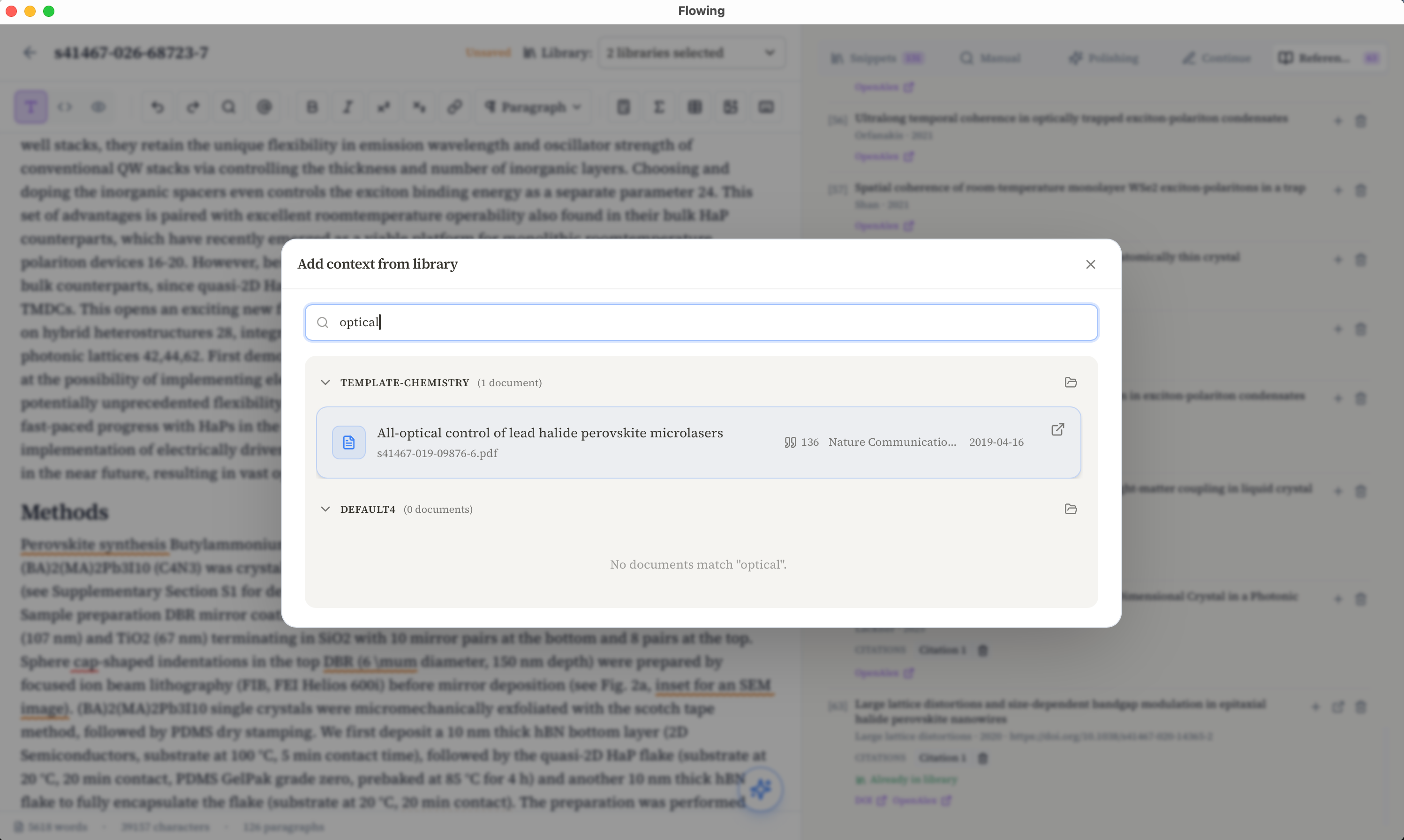
Open the References tab in the right panel to see every bibliography entry as a card: citation number, title, author, and year. Click a card to jump to the matching entry in the manuscript’s References section.
Jump between citations and cards
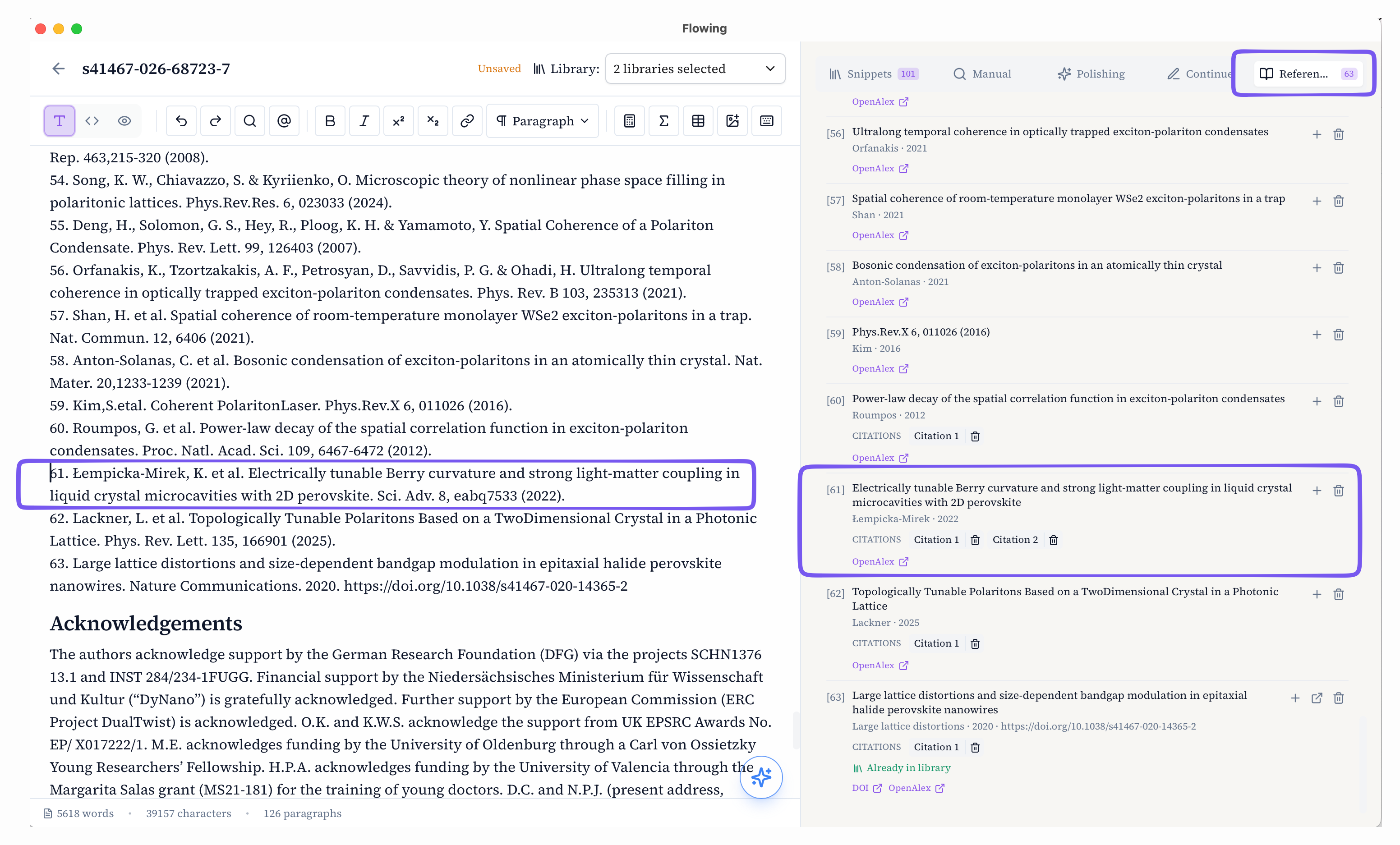
Click an in-text citation such as [61] to highlight the matching card in the sidebar. From a card, use Citation 1, Citation 2, … to jump back to each place that reference appears in the draft.
Insert a reference with @
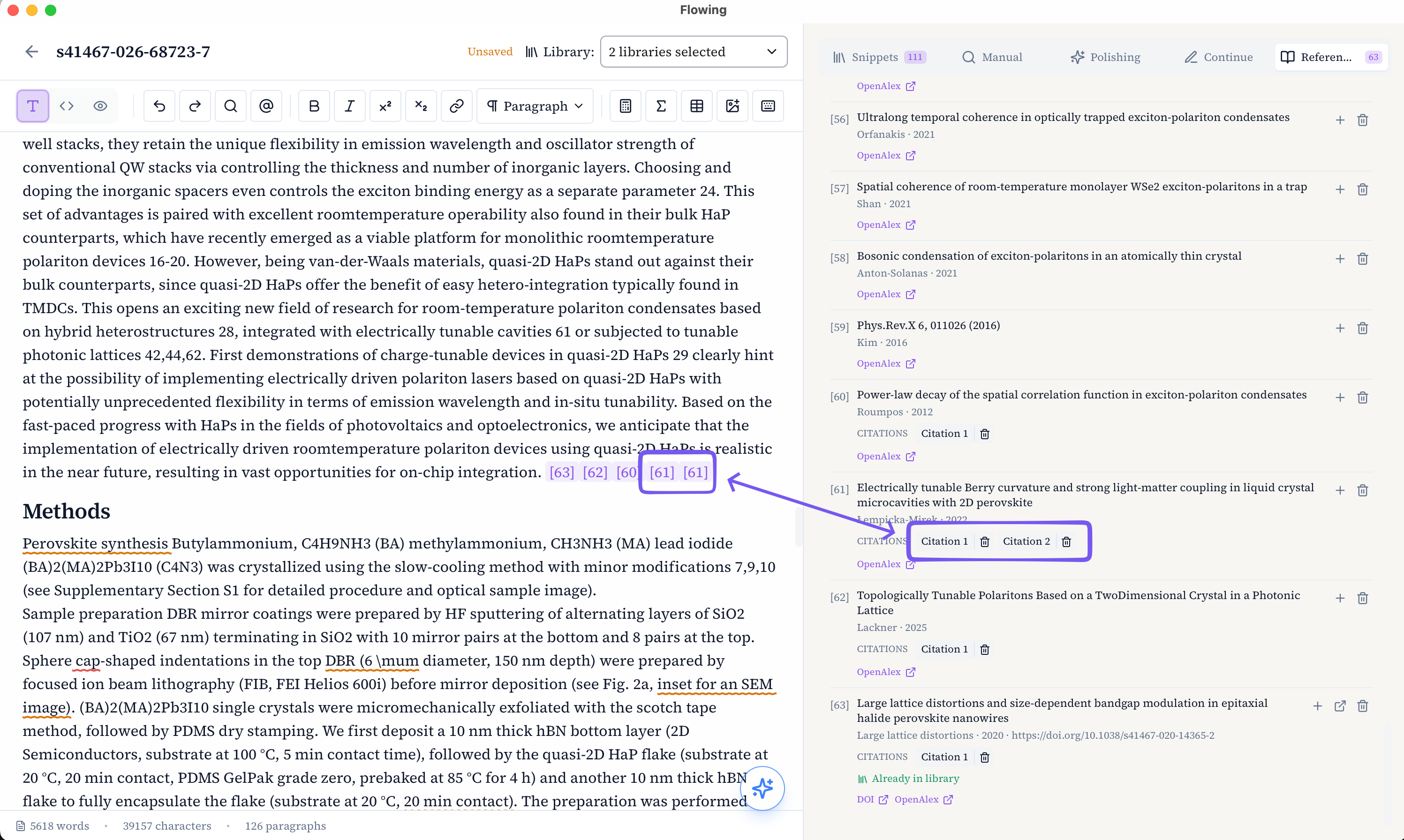
Type @ in the editor—or click the @ button in the toolbar—to search your library and insert a PDF as a citation. Flowing places the numbered marker in the text and appends the full bibliographic entry, keeping the References tab in sync.
Search your library
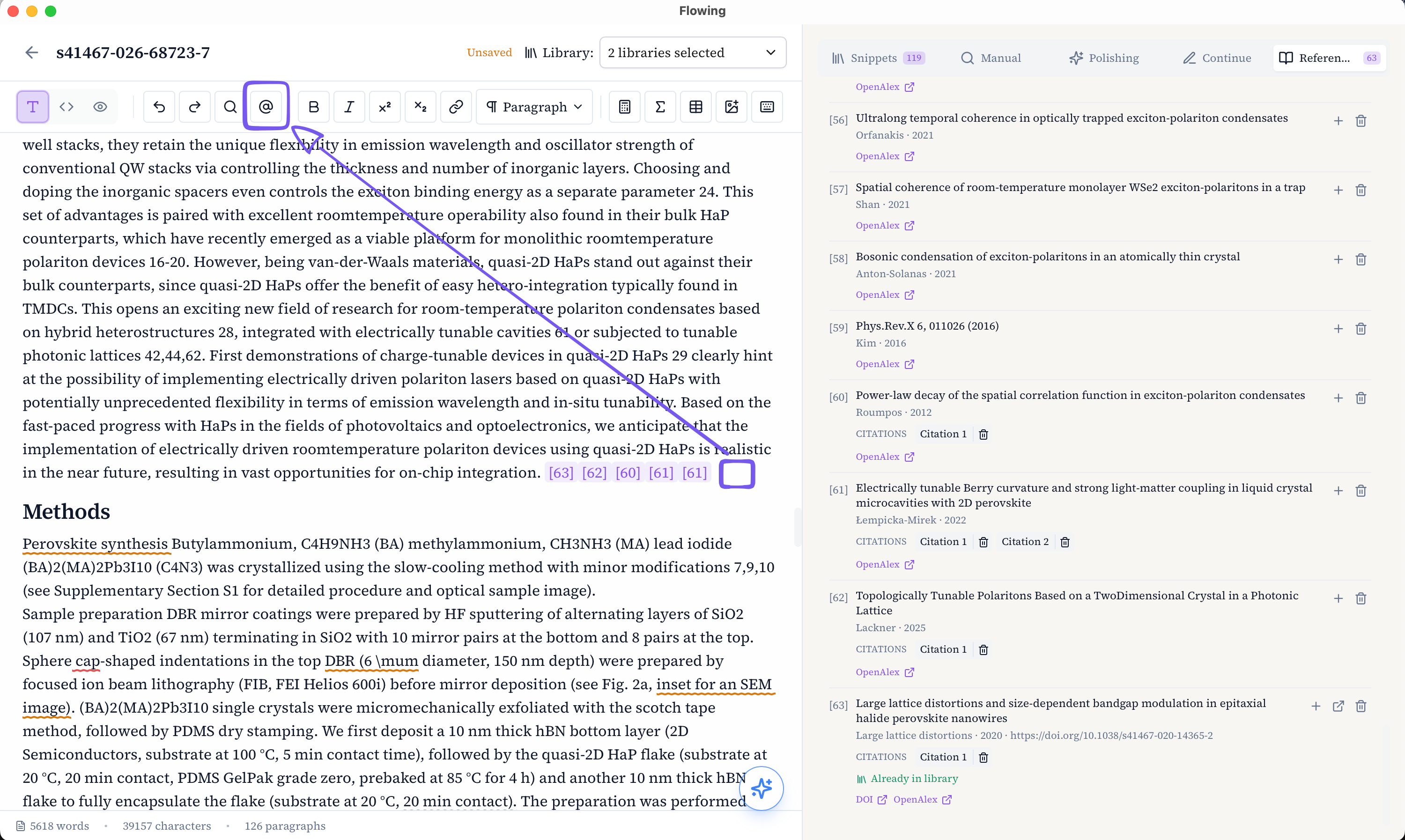
The picker opens Add context from library. Search by title or file name across the libraries selected for this document, then choose a paper to insert. Papers already in your library are marked so you can confirm the match before citing.