Continue writing
Generate new text after your cursor—grounded in your library, with the same context chips as content polish.
Continue writing extends your draft forward from the cursor. Like content polish, it gathers library passages as context chips you can add or remove—but instead of rewriting a paragraph, it inserts new sentences after the cursor without replacing text you already wrote.
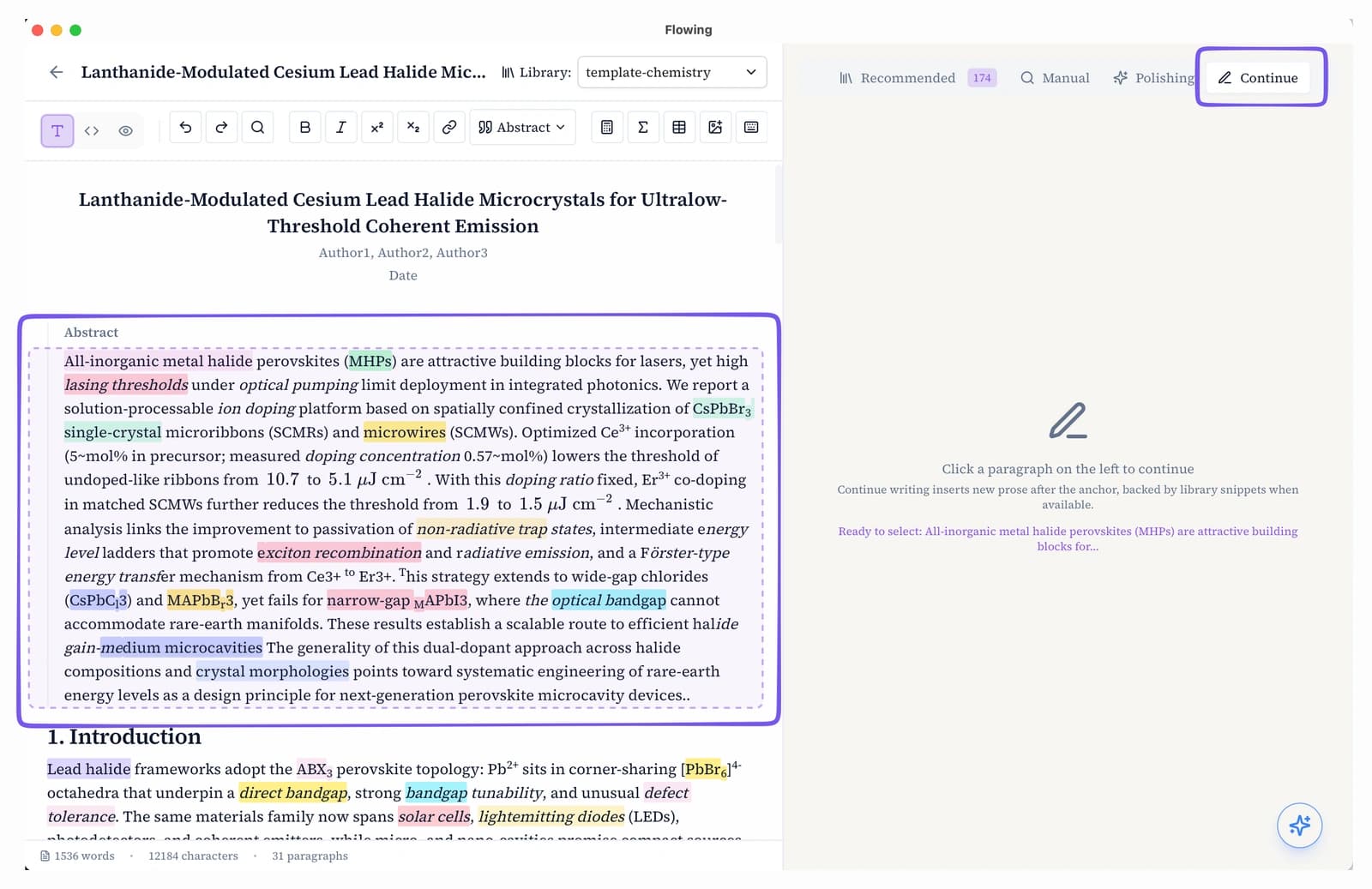
Place the cursor
Open the Continue tab on the writing page. Click where the new text should begin—typically the end of a paragraph or section. Flowing uses the preceding draft (including the paragraph you are in) as the anchor for what to write next. You can also hover a paragraph for the dashed outline and click to focus context, same as content polish.
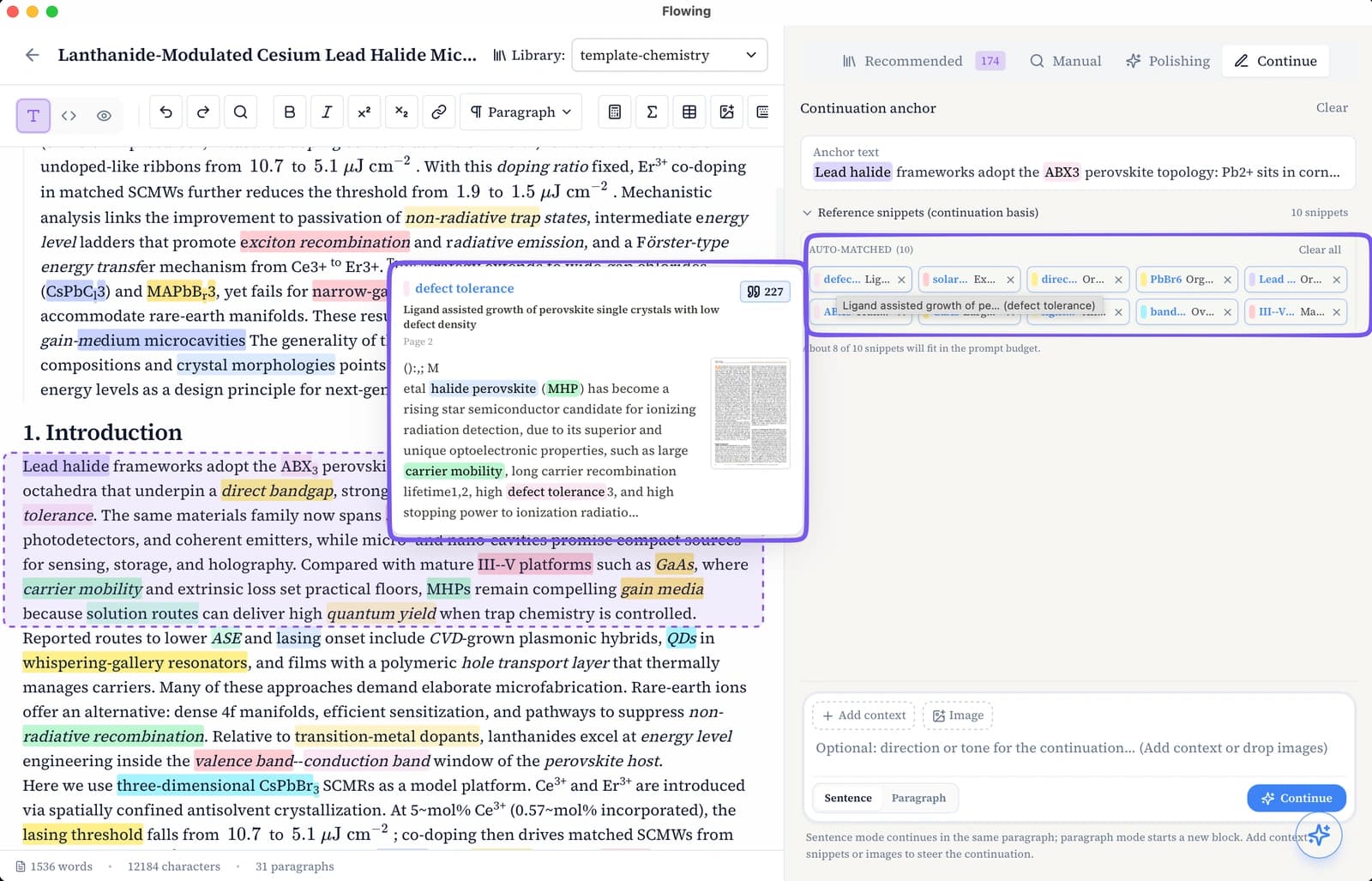
Context snippets
This step works like content polish: Flowing pre-loads up to 10 library passages matched to nearby keywords as context chips. Remove chips you do not want or add more from your library, then generate continuation candidates.
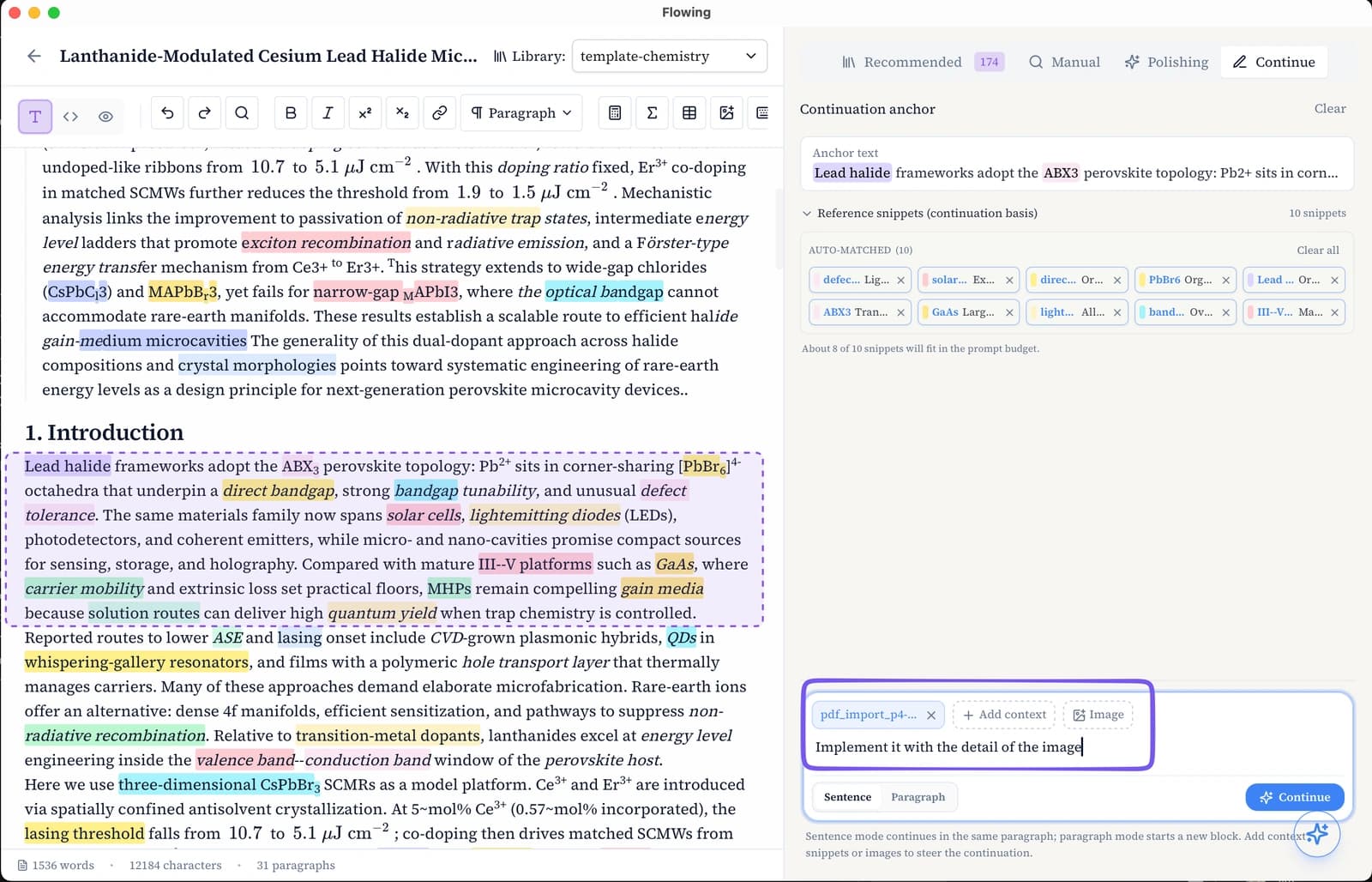
Add your context
Beyond the auto-matched chips, you can add context by hand before you generate. In the context area, type @ to search your library and pick a paper—then select text or box a figure region in the preview. Each pick becomes a context chip (text excerpt or image snippet). Combine hand-picked sources with the matched passages until the context reflects what you want the continuation to draw on.
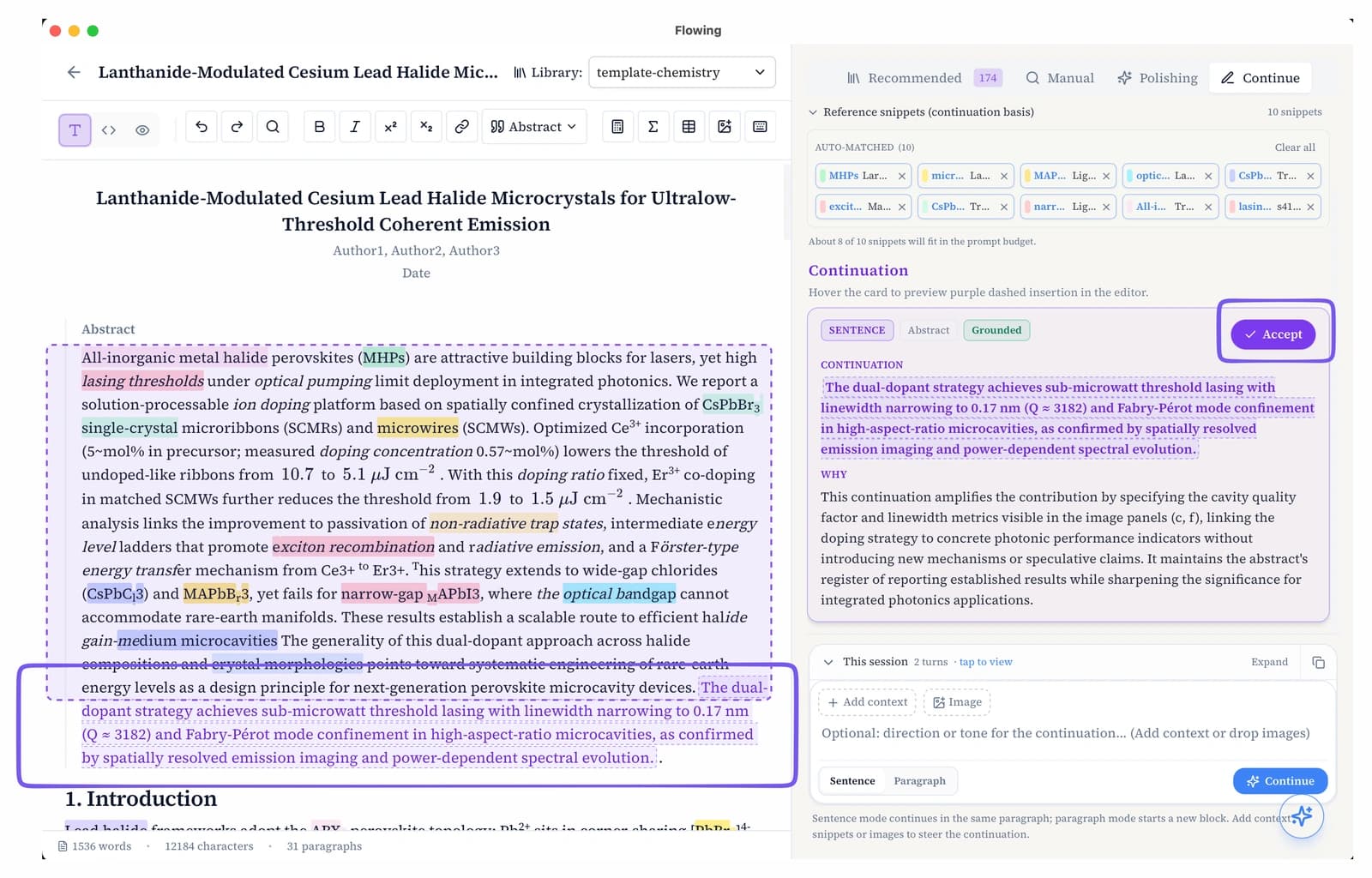
Result card with evidence
Each suggestion appears as a result card. The proposed continuation sits at the top; below it, the evidence panel lists the library passages that ground the text—excerpt text, source title, and page thumbnails you can preview. Review the basis, then Accept to insert the new sentences at the cursor. Adjust context or move the cursor and generate again to keep extending a section—nothing is auto-inserted without your confirmation.