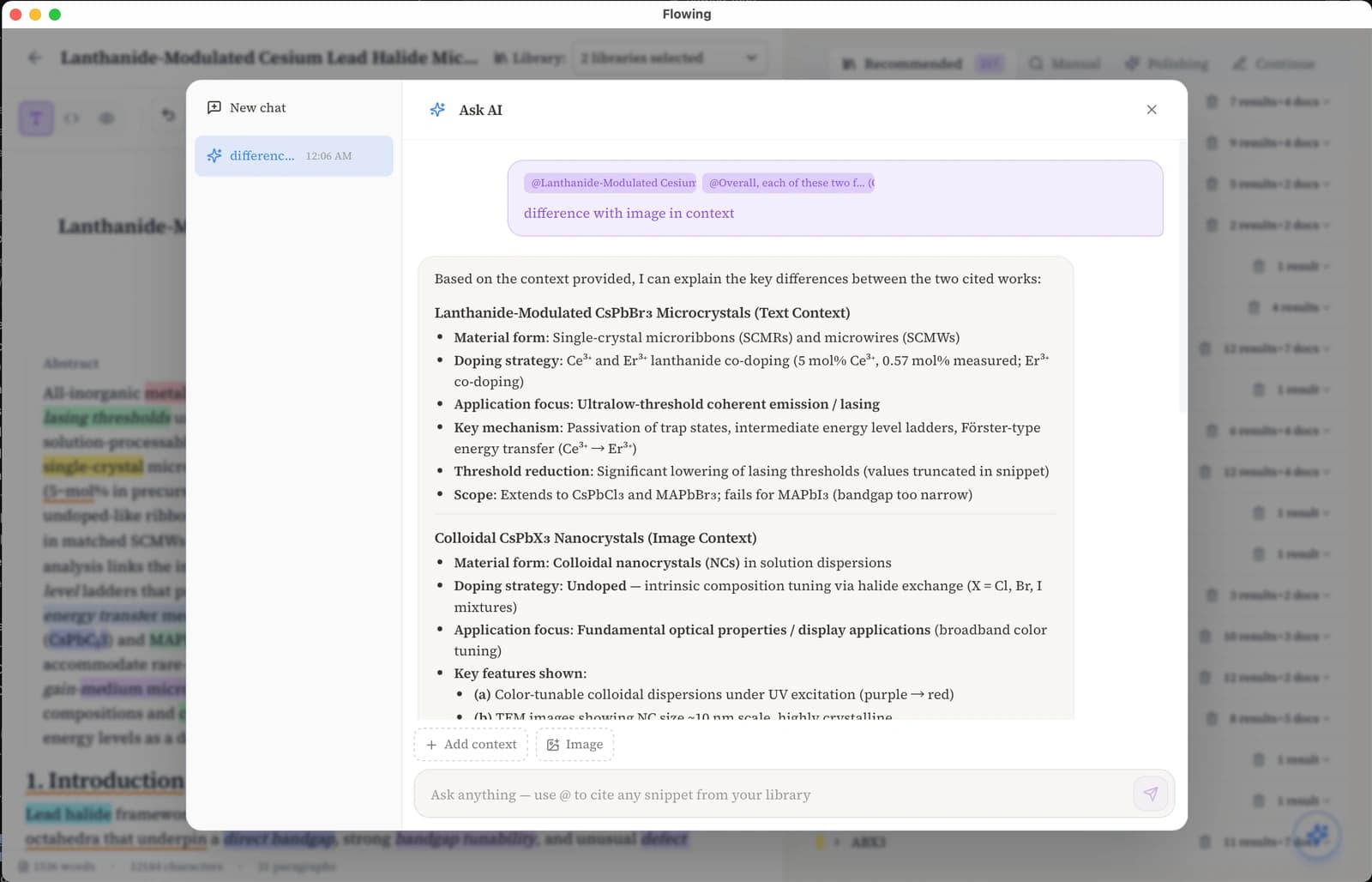
Ask with context
Type @ to search your library, attach text or figure snippets as context, then chat with AI in a continuous thread.
Ask with context keeps your references attached to the conversation—no copy-pasting between PDFs, your draft, and a separate chat app.
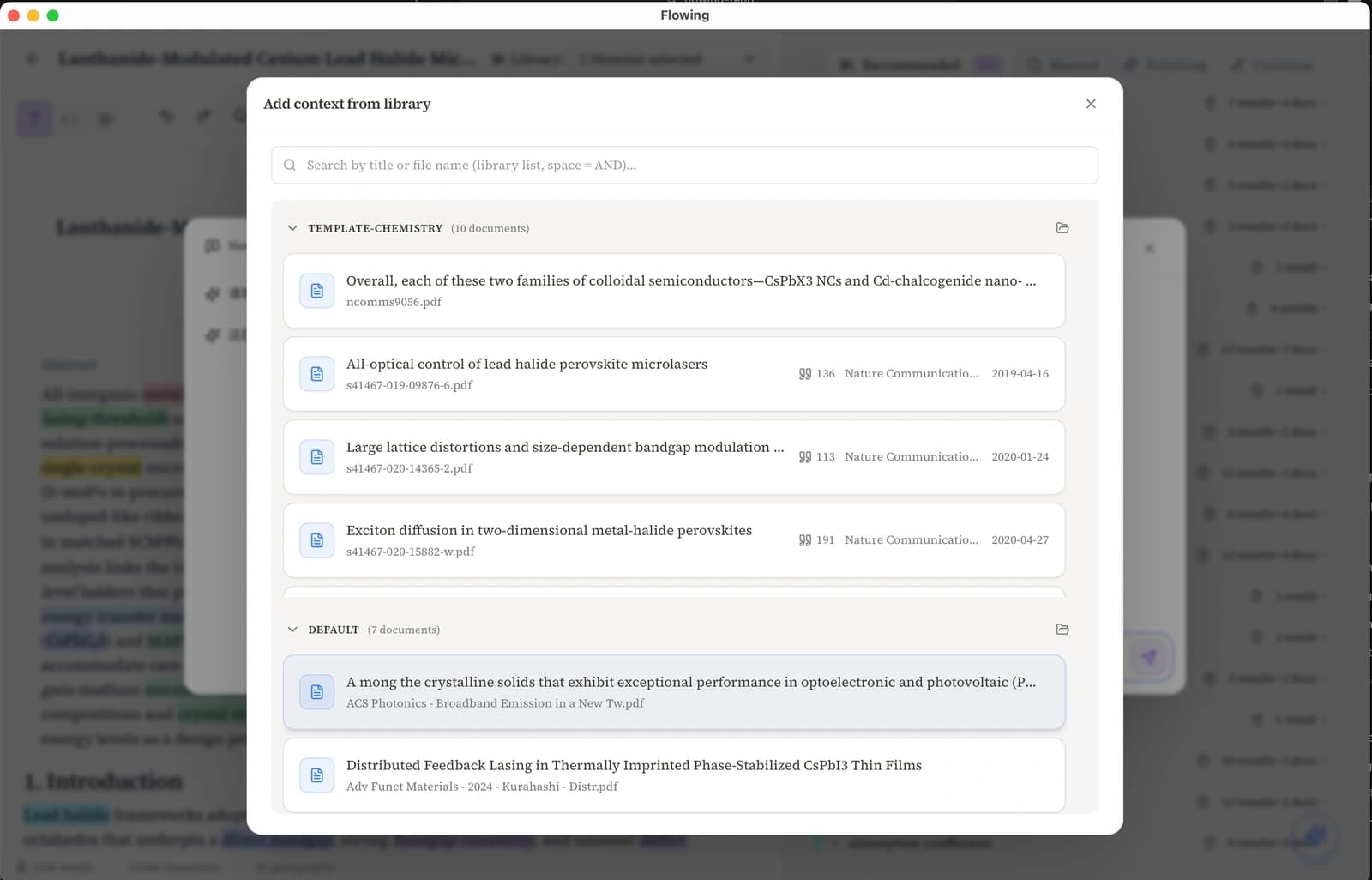
Invoke library search with @
Open Ask with context from the sparkle button, a text selection, or a Recall snippet card. In the message box, type @ to open Add context from library. Search by title or file name, browse papers grouped by library, and pick the document to ground the conversation—the picker stays open until you attach a passage or dismiss it.
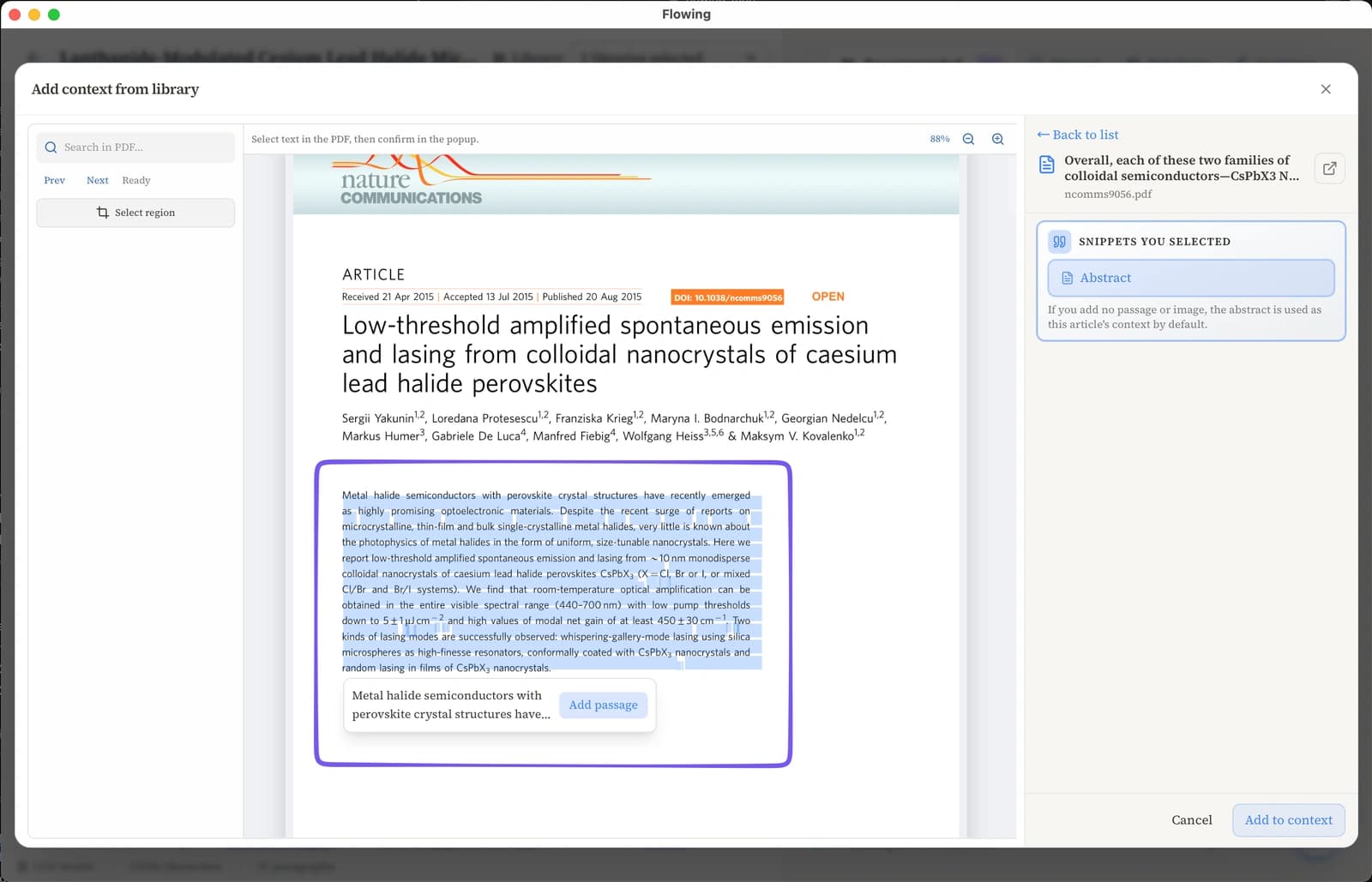
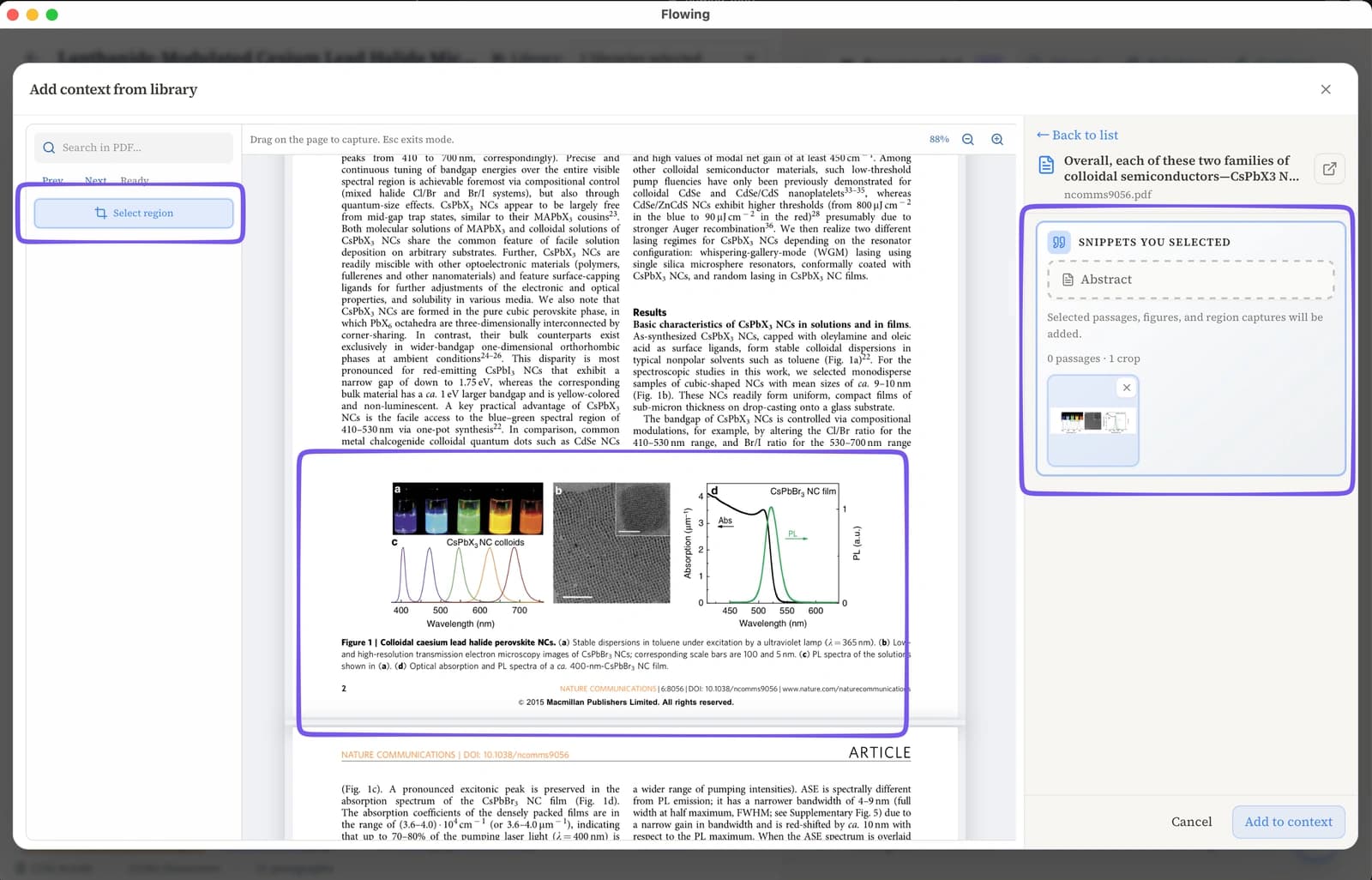
Build context snippets
After choosing a paper, select text in the PDF preview or box a figure or chart region—each selection becomes a context chip above the input (text excerpt or image snippet). Attach multiple chips from one paper or across your library before you ask.
Ask and follow up
Send your question; the model answers using the attached chips. Keep chatting—follow-up messages stay in the same thread with context preserved, so you can clarify, compare sources, or dig deeper without re-attaching.