
Prepare your library
Create a library, import reference PDFs, and grow it with open-access web recommendations when you need more sources.
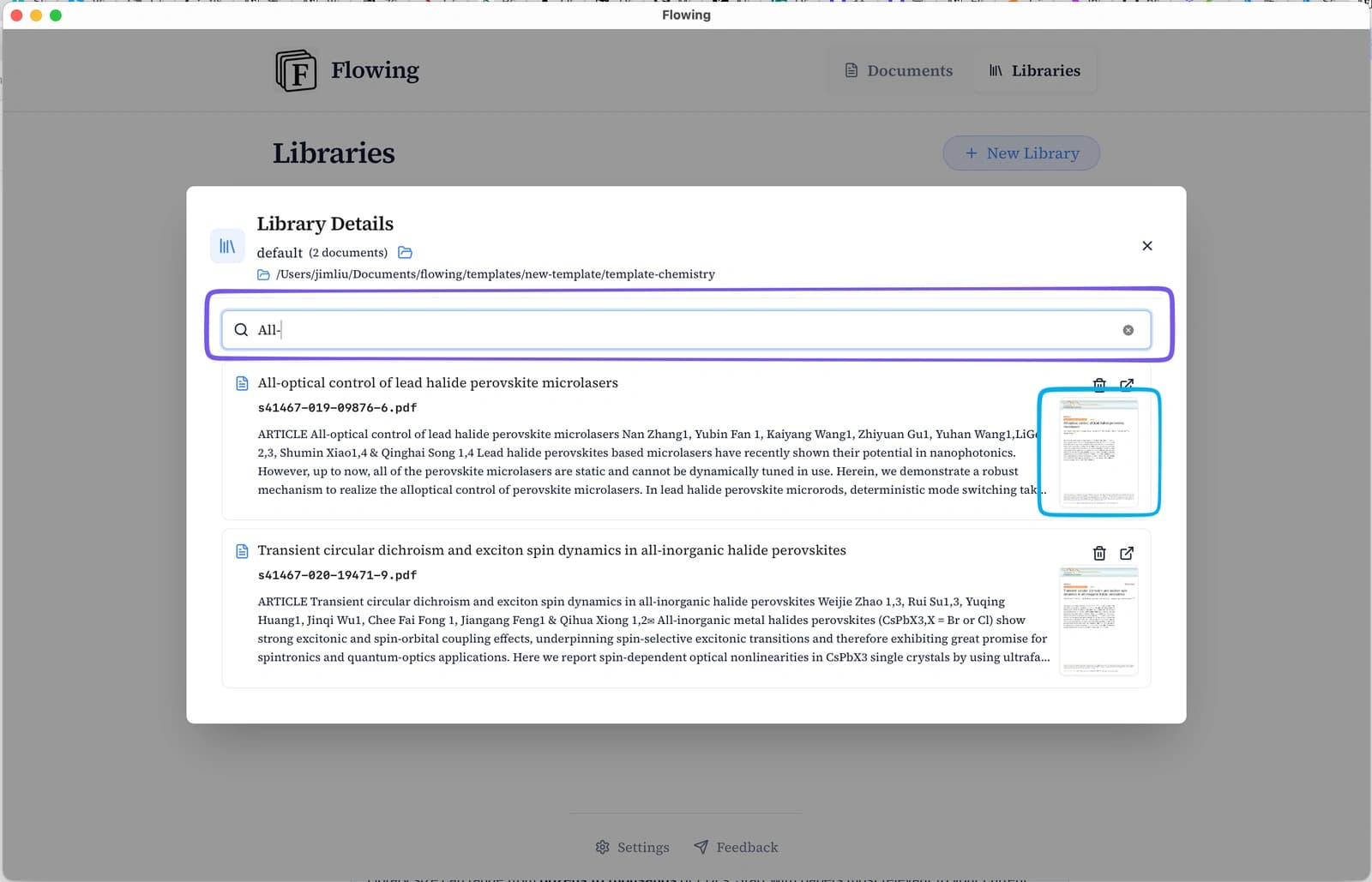
Importing your library is the foundation for Recall, Ask with context, and evidence-grounded revision. Even a focused set of core papers is enough to experience the full loop.
Create a library and import PDFs
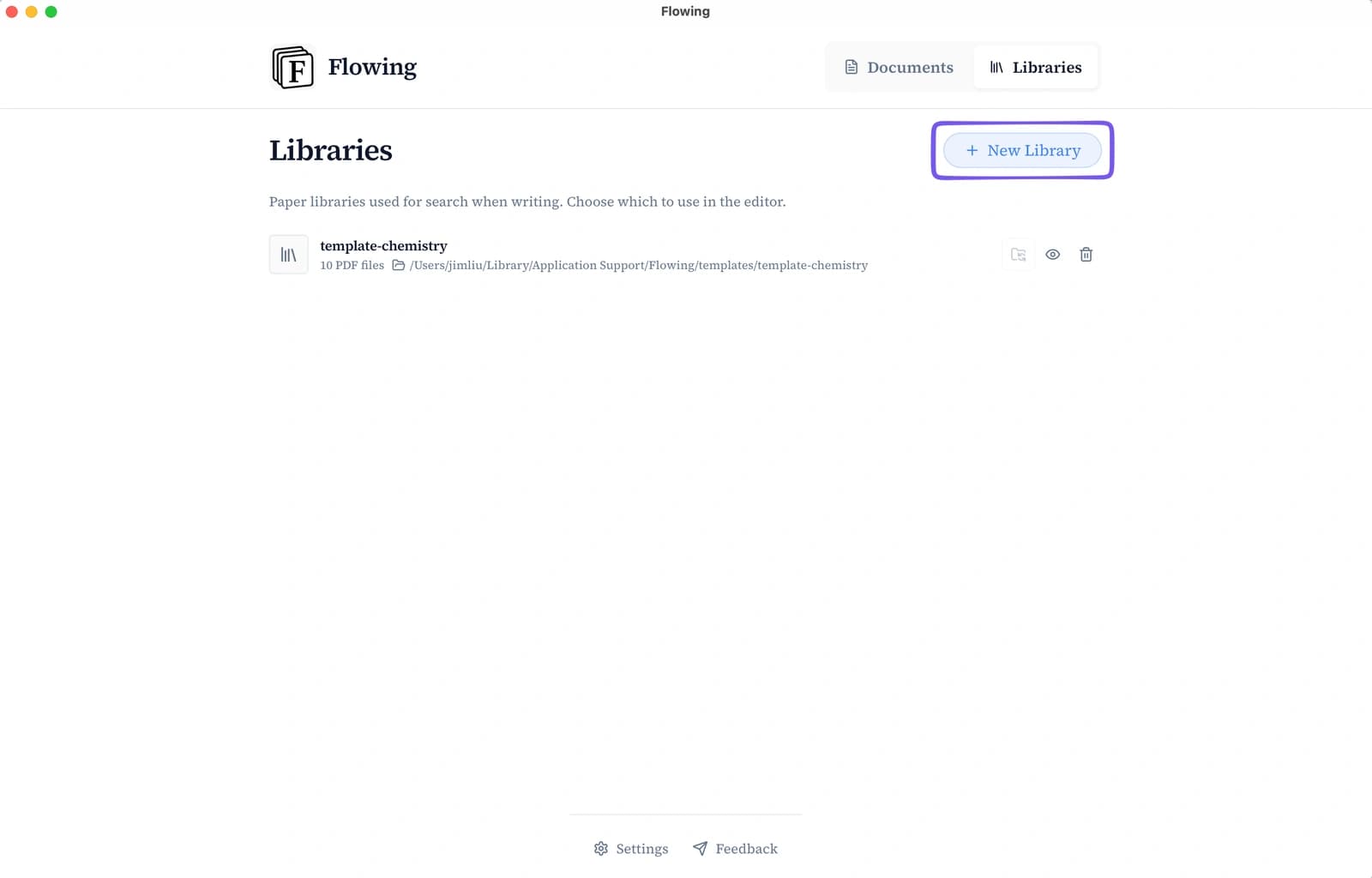
Open Libraries
From the top navigation, open Libraries—this is where your reference PDFs live.
Click New Library
Give your library a name (for example, default or a project name).
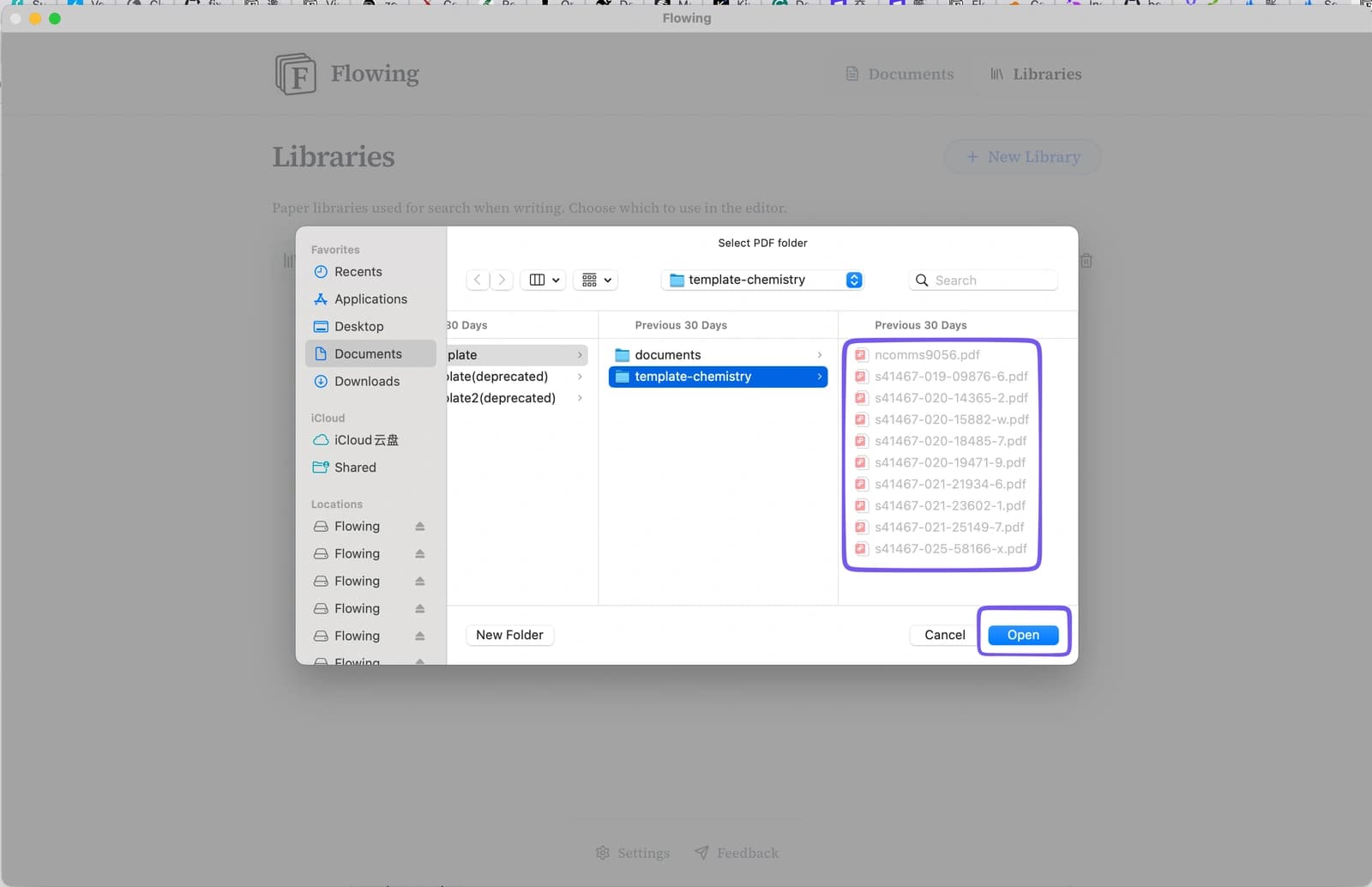
Select PDF files or a folder
Flowing imports every PDF it finds and begins parsing text for search and AI features.
Wait for parsing
Large files may take several minutes. Progress shows which PDF is being chunked (for example, 2/7).
Import and background parsing
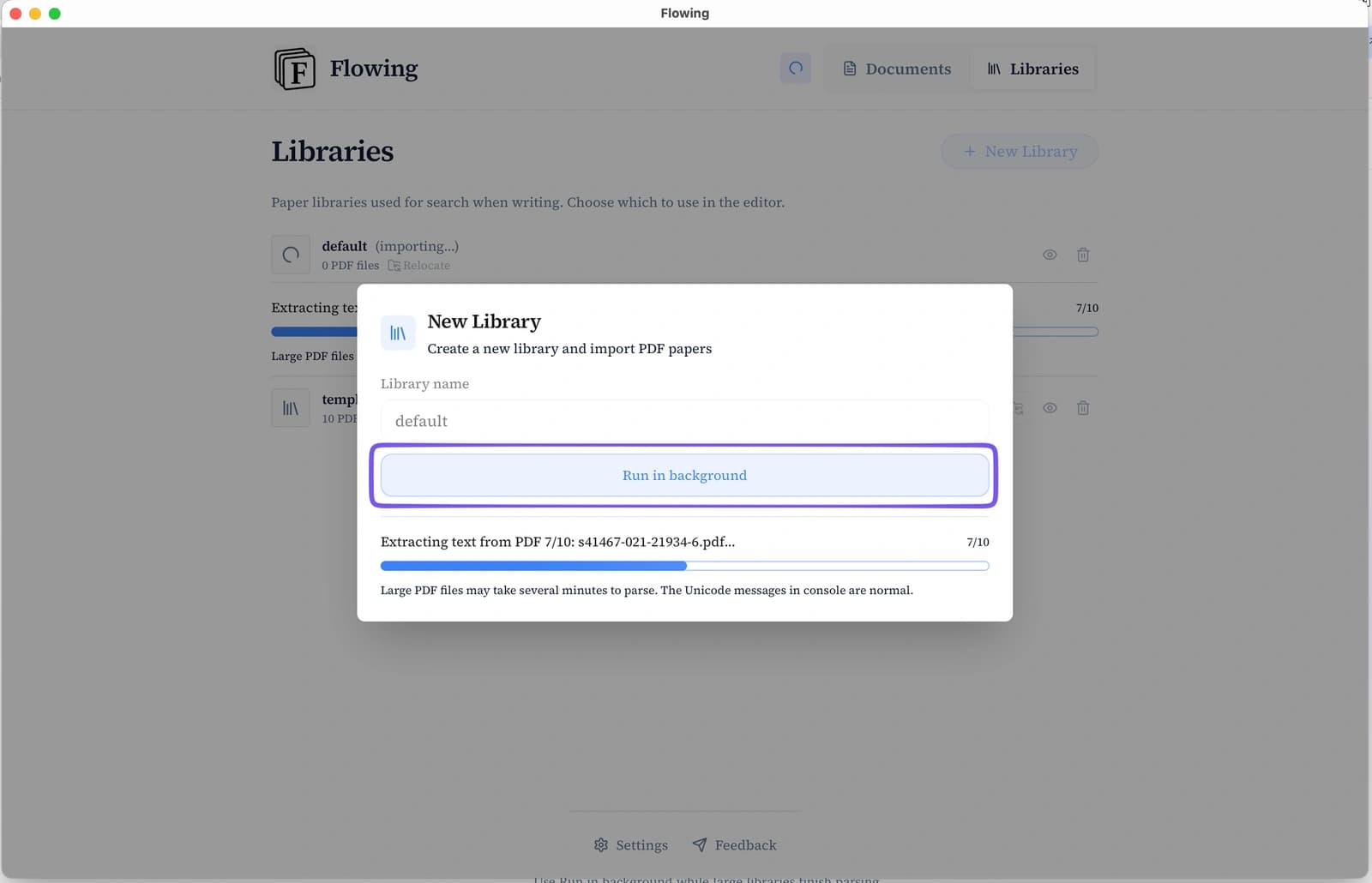
While importing, Flowing splits each PDF into searchable passages and builds metadata (title, citations, dates). Large libraries may take several minutes—that is normal.
Auto-recommend open-access papers from the web
When your library is still light on PDFs, turn on Auto-recommend papers from the web at the top of the Recommended panel. Flowing reads the paragraph you are working on and searches OpenAlex for open-access papers tightly tied to what you are writing—not a generic keyword dump.
Each suggestion runs through a propose-and-verify pipeline: an LLM drafts a small set of candidate papers with a concrete Why relevant rationale and citation role, then OpenAlex confirms the work exists and has an OA PDF. Rationales that only repeat topic keywords are rejected—what you see should explain how a paper supports a specific mechanism, measurement, or claim in your draft.
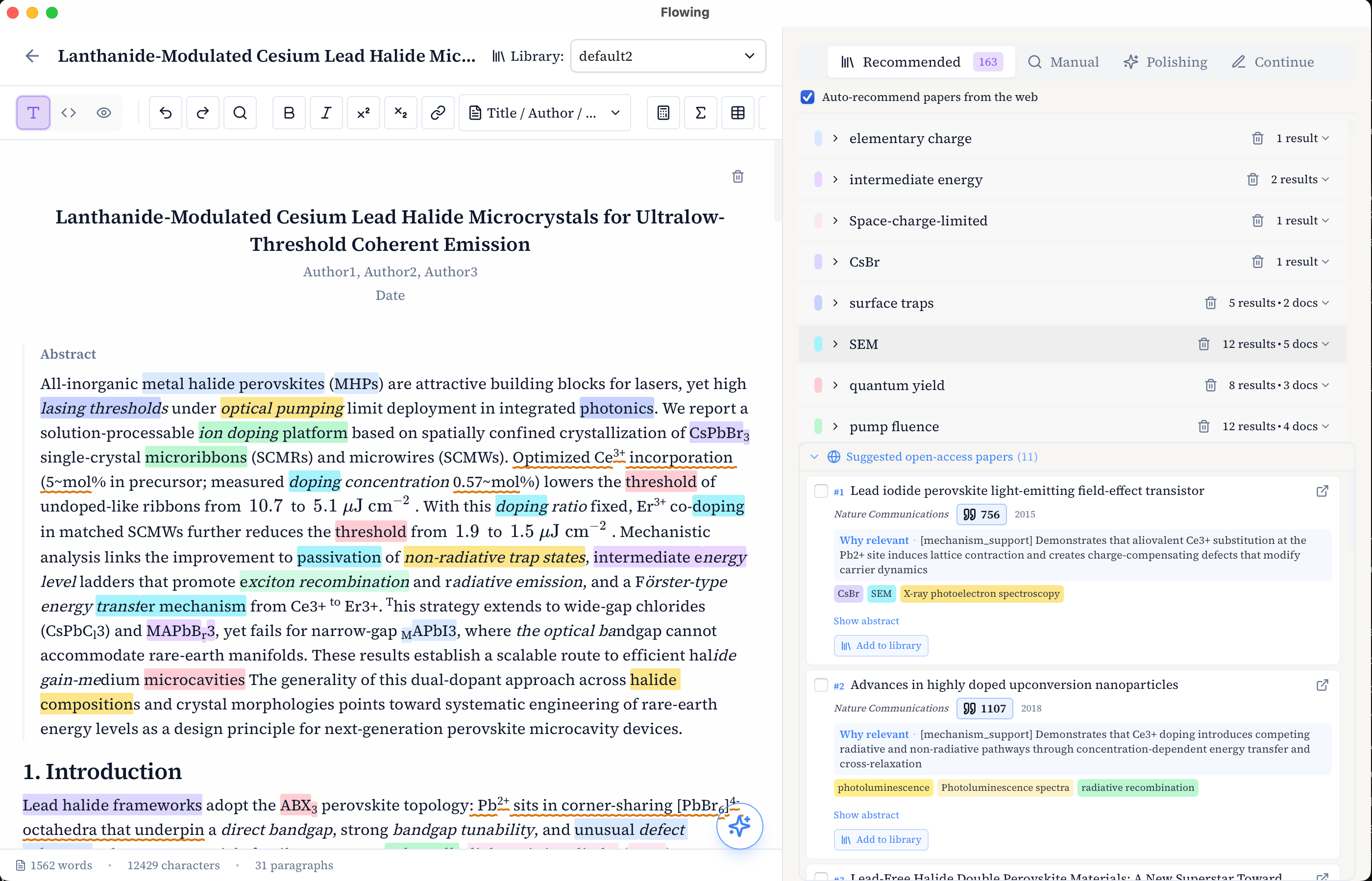
Turn on the toggle
Enable Auto-recommend papers from the web (off by default). The first time, confirm the privacy notice. Optionally include paragraph body text for stronger matches—also off by default.
Keep writing
As keywords stabilize in a section, Flowing recommends 0–3 verified OA papers per qualifying paragraph, skipping titles already in your library.
Read Why relevant
Use the rationale under each card to judge whether the paper truly backs your line of argument—not just shares vocabulary.
Add to library
Import papers you want to keep. They join the same local library used for snippet recall and context attach.
Your data stays local
Flowing is a desktop app: your PDFs, drafts, and search index stay on your machine by default. Only the snippets needed for AI features are sent to model services when you use them.